
Zoo CodePublic
Zoo Code for AI Engineer is a custom version of Zoo Code for enterprise use cases with no telemetry. As a fork of Cline, it keeps the same core agent workflow while adding more control and configuration options for power users.
Key Features
Section titled “Key Features”- High-performance Cline fork optimized for speed and cost control
- Mode-based guardrails to limit actions by role and risk
- Efficient line-based diffs to reduce large file rewrites
- Best when you want agent power with tighter operational control
Installation
Section titled “Installation”- Download the Zoo Code VS Code extension from AI Coding Plugins.
- If you are updating an existing installation, delete the old Zoo Code extension folder from
.vscode/extensions. - In VS Code, open Extensions, open the three-dot menu, and choose Install from VSIX.
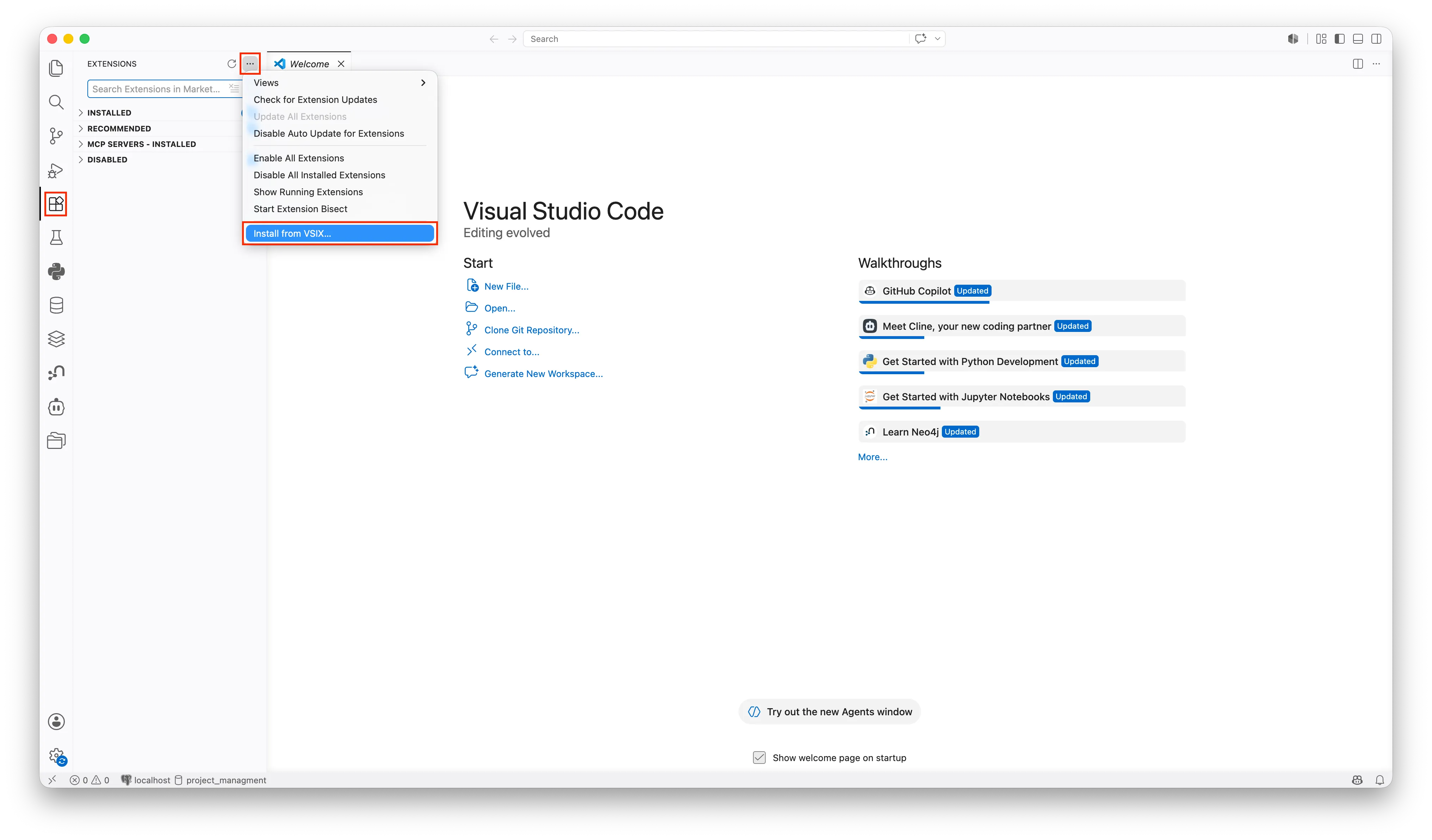
- Select the downloaded file and reload VS Code.
- Download the Zoo Code VS Code extension from AI Coding Plugins.
- If you are updating an existing installation, delete the old Zoo Code extension folder from
.vscode/extensions. - In VS Code, open Extensions, open the three-dot menu, and choose Install from VSIX.
- Select the downloaded file and reload VS Code.
- For users coming from the retired Roo Code we recommend the Import settings option. Having Roo Code still installed, export
your settings there and import them into Zoo Code and you are set up.
If you are a new user, straightly click Choose your provider.
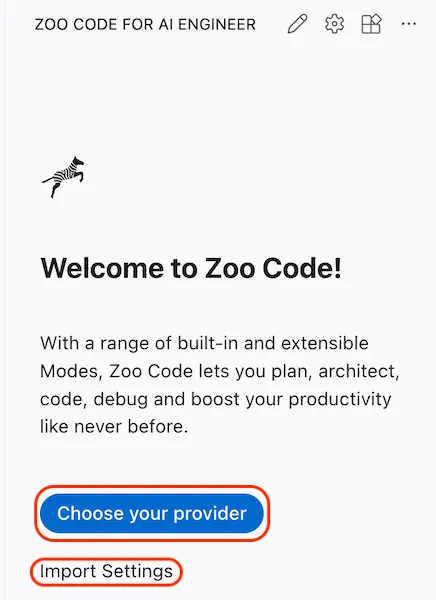 2.Set up the API provider:
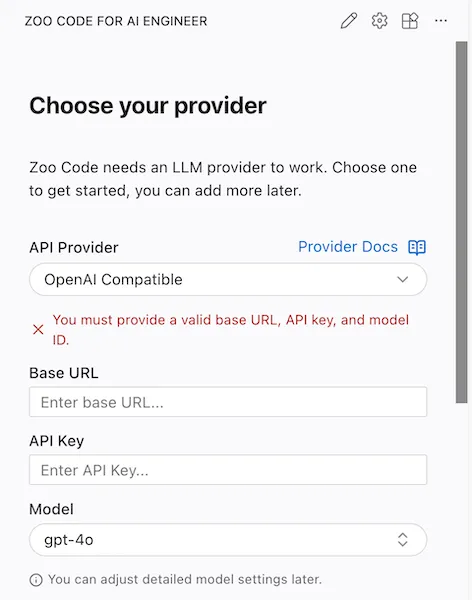
- Set the API Provider to
OpenAI Compatible. - Set the Base URL to
https://llm-server.llmhub.t-systems.net/v2/coding. - Generate an API key and paste it into the API Key field.
- Choose a model ID and paste it into the Model field.
- Click on Save.
- Set the API Provider to
You can now start a chat and use Zoo Code in VS Code.
Updating
Section titled “Updating”After setup, Zoo Code can fetch newly published versions automatically. When you start or reload VS Code and an update is available, a popup appears.
- Click Yes to download the latest version.
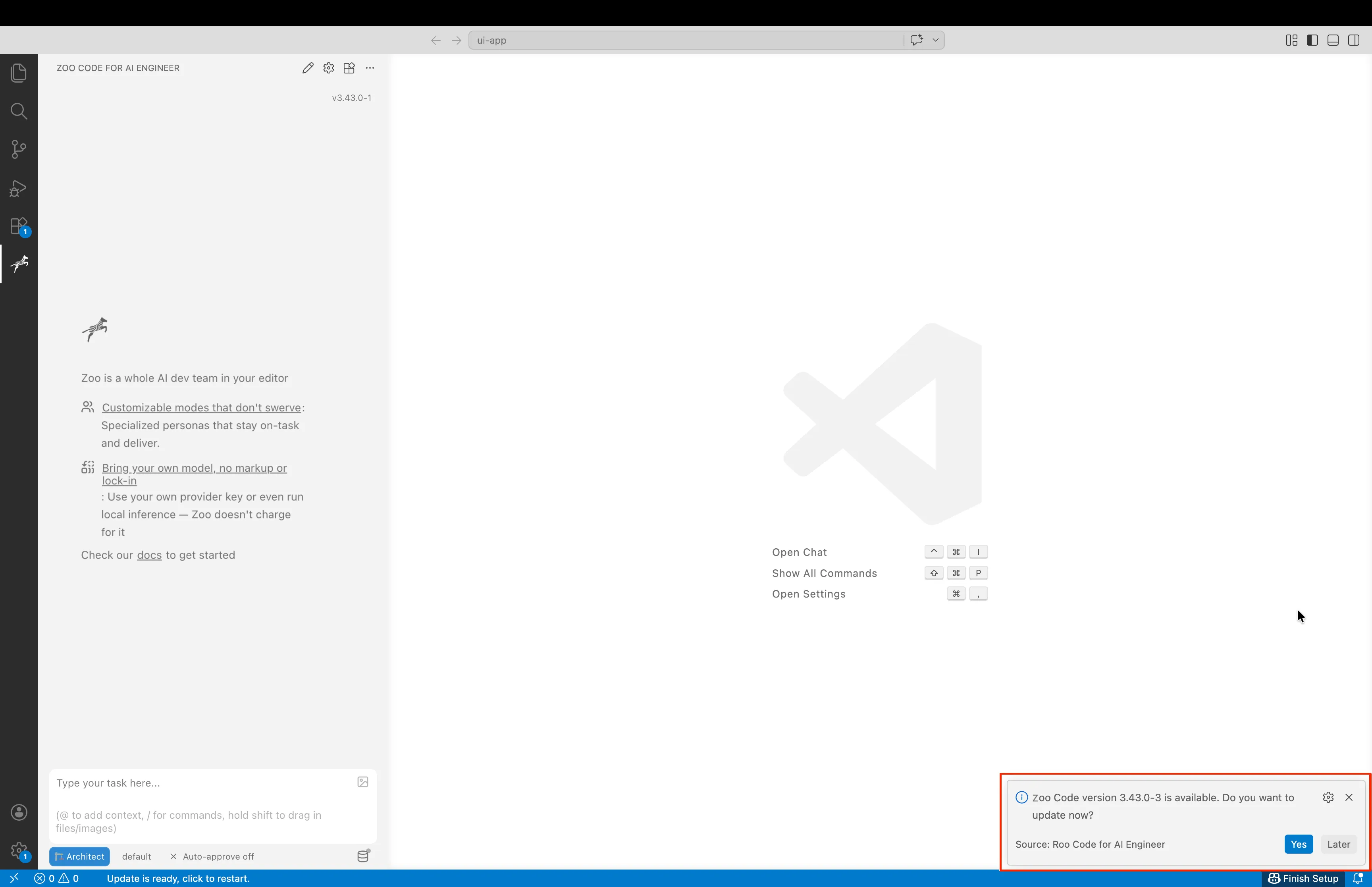
- After the download finishes, click Reload Now to restart the extension.
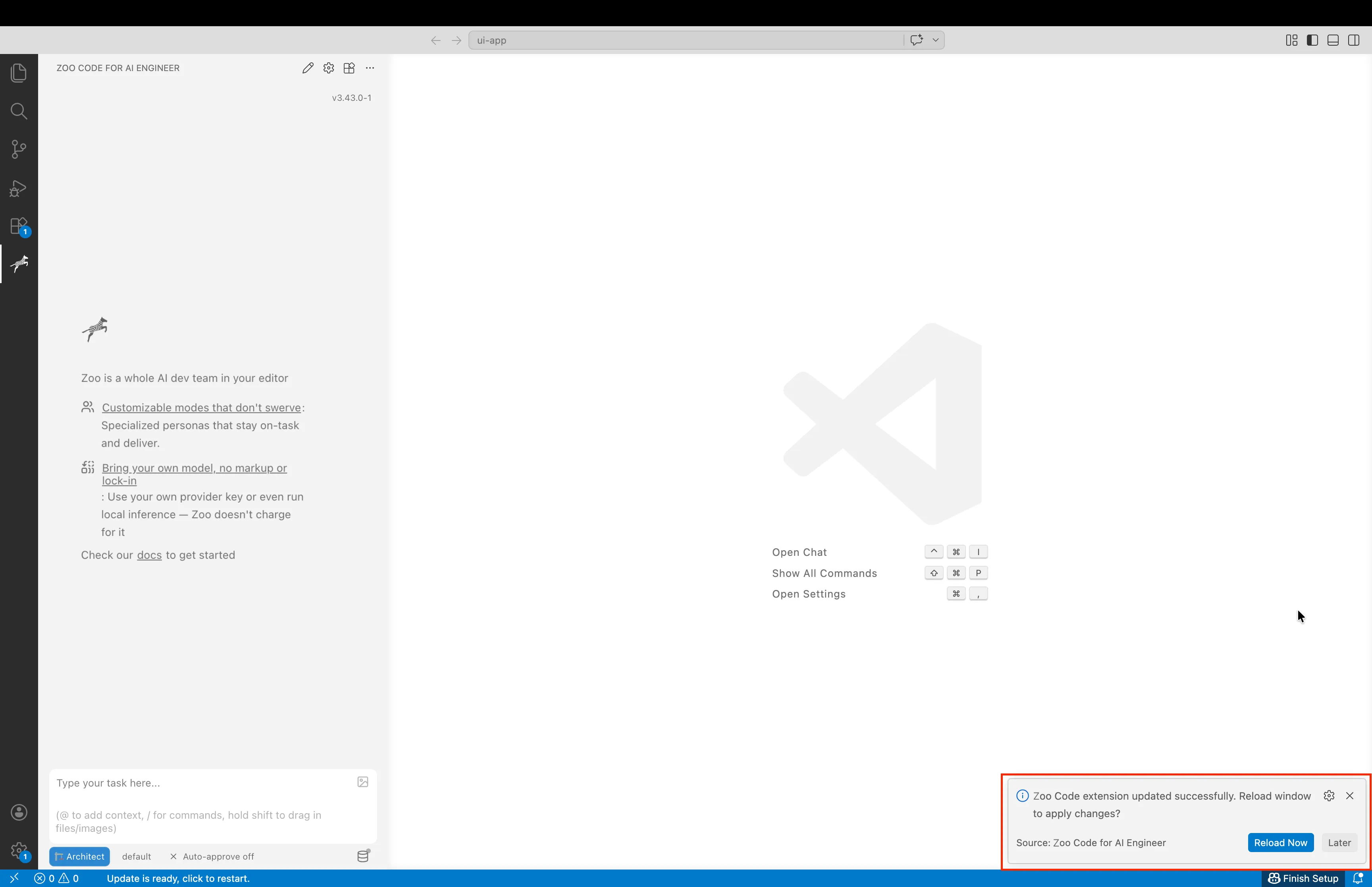
After Visual Studio Code restarts, the latest Zoo Code version is ready to use.